
-

Your new Eastlight portal
Use your new My Eastlight portal to:
- Book or change a repair appointment. Please call us on 0330 128 0330 for urgent or emergency repairs (see more about repairs here)
- Check your rent balance or make a payment
- Report damp and mould
- Report anti-social behaviour
- Send us a compliment or a complaint
- Update your details.
-
Download the app
Download the app from the Apple App Store or Google Play Store.
-
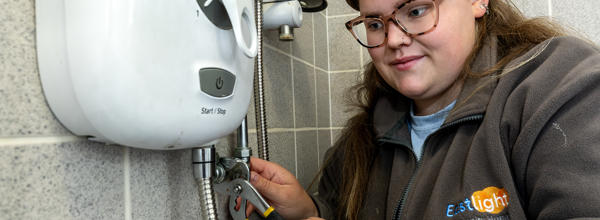
How to report a repair
- Please read the information provided so you know which repairs can be raised on 'My Eastlight' and which to call us about
- Please report only one repair at a time
- Please upload photos to help us fix the issue as quickly as possible
- Free slots are shown in light blue - you may need to go into the next month to find them
- Your repair is only booked once you see 'Repair confirmed'
- See which repairs you're responsible for, and which we cover, here
- If you need to cancel your booking, and you can't on the portal or app, please call us
- If your repair relates to damp and mould, please complete the form in the 'Report Damp and Mould' section instead.
Your Frequently Asked Questions
If you're a tenant and we had your email address on file prior to November 2025, you simply log in with your email address and follow these steps for verification:
- Visit the portal here and click ‘Login or Register’
- Enter the email address we have on file for you and click ‘Continue’
- Click ‘Send verification code’ once you’ve entered your email
- Enter the code emailed to you and click ‘Verify code’
- Create and confirm your password
- Click ‘Continue’ to access your portal account, and you’re in!
See a guide with screenshots here.
If you're a new tenant, you want to log in with a different email address or your phone number, or you're a shared owner or leaseholder, you’ll need to complete a few more details, including your Tenancy Reference Number. Please contact us here if you don’t have it to hand.
Follow these steps:
- Visit the portal here and click ‘Login or Register’
- Click on either the ‘Email’ or ‘Phone’ link at the bottom to create an account using either your email address or mobile phone number
- Enter your email address or mobile phone number, depending on which option you chose, then click the ‘Send verification code’ button
- Click ‘Next’ then enter the code emailed to you and click ‘Verify code’
- Fill out all your details and create a password and confirm. Click ‘Create’ to access your portal account, and you’re in!
If you've logged in with your email address, you simply need to enter your password again (you have the option to save it as you go along). If you signed up through a phone number, Microsoft will send you a verification code each time you log in, as you won’t have a password.
Please call us on 0330 128 0330 if your appointment is within 28 working days and you've attempted and failed to reschedule it on the portal or app.
Shared owners, leaseholders and anyone who has lived in a new build property for less than 12 months are unable to book repairs on the portal or app - please call us instead.
Here is some general guidance for booking repairs if you're a tenant:
- Please read the information provided so you know which repairs can be raised on 'My Eastlight' and which to call us about
- Please report only one repair at a time
- Please upload photos to help us fix the issue as quickly as possible
- Free slots are shown in light blue - you may need to go into the next month to find them
- Your repair is only booked once you see 'Repair confirmed'
- See which repairs you're responsible for, and which we cover, here
- If you need to cancel your booking, and you can't on the portal or app, please call us
- If your repair relates to damp and mould, please complete the form in the 'Report Damp and Mould' section instead.
You need to have good Wi-Fi signal to log in properly. You also need to follow the correct process depending on whether we had your email address on file from November 2025. Please contact us with any issues - we are here to help.
If you’ve been using or have access to the old My Eastlight portal, you’ll need to create a new account for the updated and improved version.
Questions?
Please get in touch. We are here for you.